How to use ExeDock
From download to playing in about three minutes.
Download and install
Download ExeDock, open the disk image and drag ExeDock into Applications. If you open it from elsewhere, the app offers to move itself there.
Add a game
Drag the game folder (or its EXE) into ExeDock, or click “+” at the top right. The game stays where it is.
Choose a compatibility mode
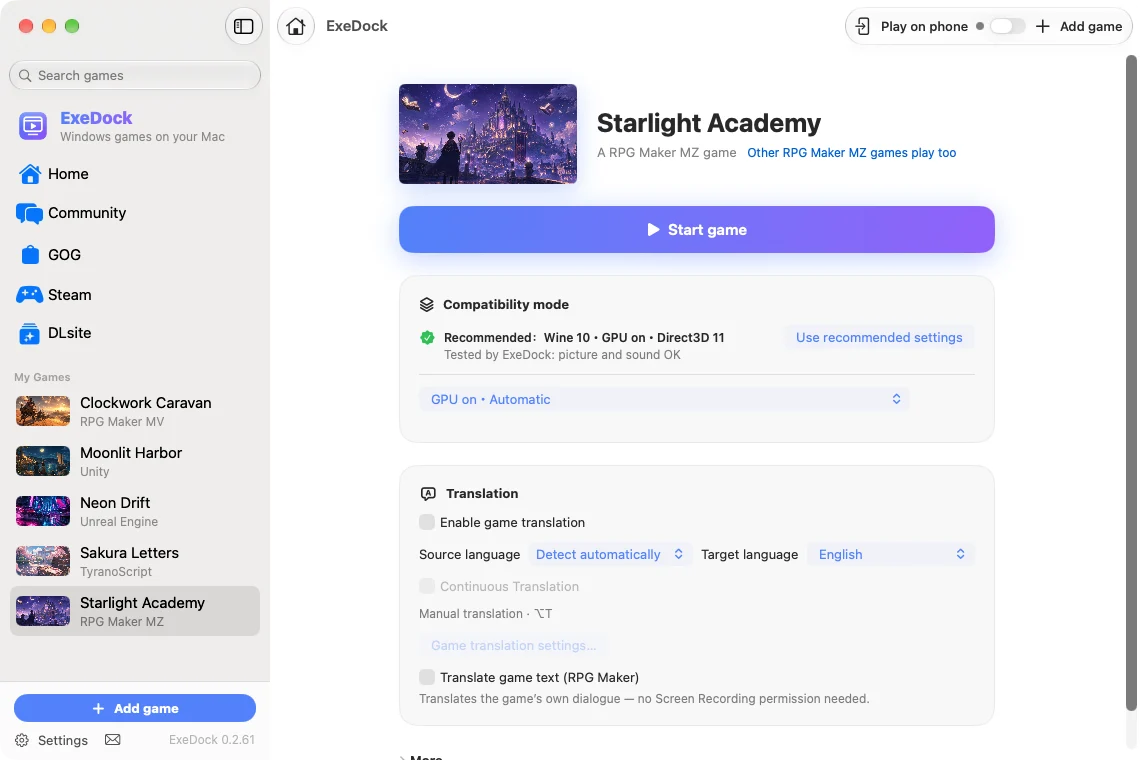
The game page lists the available modes and highlights settings tested by ExeDock. Modes that need a download show the size, and you can click “Download Now” ahead of time.
Play
Click “Play”. The first launch prepares the environment; after that it’s one click. While playing, the sidebar shows a green dot and your play time.
Translate the game
For RPG Maker MV/MZ turn on “Translate game text” and dialogue is translated in the game; for other games press ⌥T to translate the current screen.
If something’s wrong
If picture or sound isn’t right, try another compatibility mode. You can also click “Report a Problem” to send us a message with your app and game settings attached.
DLsite and RPG Maker games on Mac
A dedicated Mac compatibility site for adults: bring the DLsite, RPG Maker and visual novel games you own. ExeDock detects the engine, prepares the environment and offers translation. Compatibility depends on each game and version.
DLsite
Sign in to DLsite
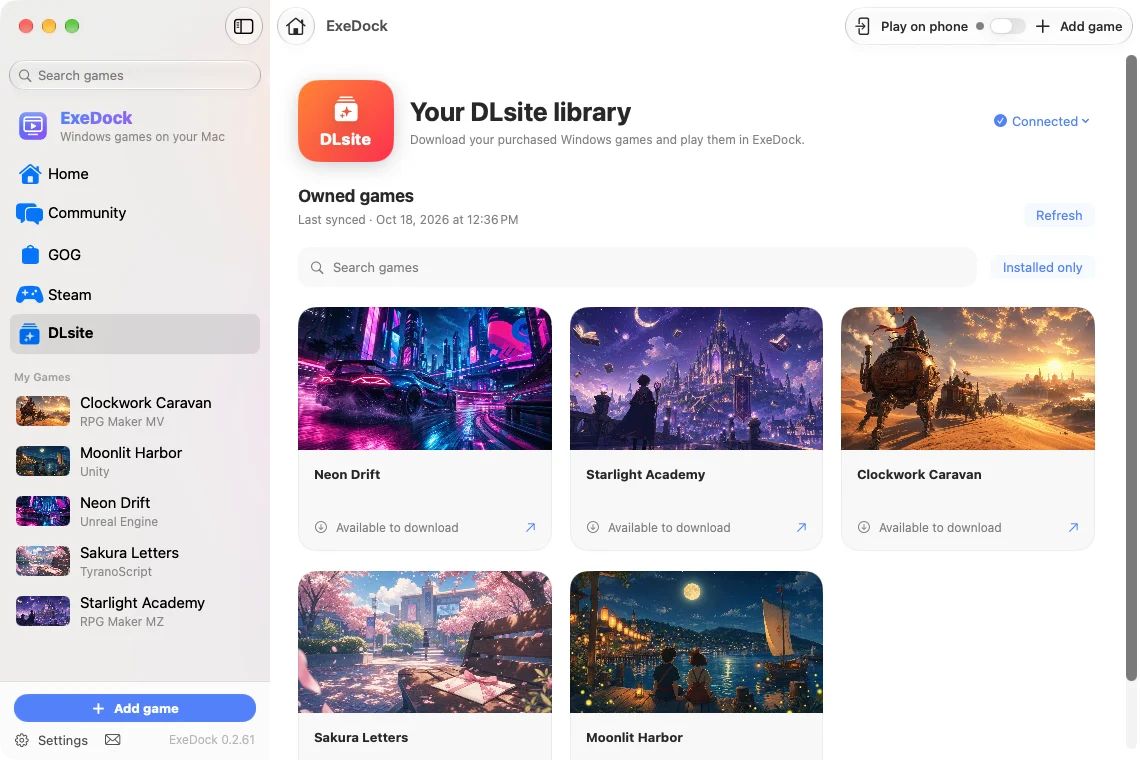
Click "DLsite" in the sidebar, then "Sign in to DLsite", and sign in on DLsite’s official page. Your sign-in is kept in this Mac’s keychain and is never sent to ExeDock.
Download and install
Pick an owned game and click "Download and install". ExeDock downloads the ZIP, RAR, 7z or split parts, checks them, unpacks them, analyzes the game and adds it to "My Games"; installers open in a Windows compatibility environment; an interrupted download continues next time.
Start the game
Click "Start game" once it is installed; titles tested by ExeDock get their recommended settings automatically. For a release that needs a serial number, "View serial number" opens DLsite’s serial page inside ExeDock without signing in again; copy the number and click download on that page, and ExeDock installs the game. Unpack password-protected archives yourself, then use "Add game".
Three ways to start a Steam game
A Windows environment can use only one Wine at a time, so every game started through Steam uses Steam’s runtime. Games you confirm are DRM-free can be started by ExeDock directly instead.
Wine 10 (Default)
Best for: Most gamesSteam and the games it starts use Wine 10, and Steam’s store, sign-in and install windows all display normally.
Wine 11
Best for: Games that won’t start on Wine 10, such as games built with ElectronSwitch it under More › Steam Runtime on the Steam page; Steam and all its games change together. On Wine 11 Steam’s own window is black, so when you sign in, install or open the store, ExeDock first asks you to switch back to Wine 10. If a game closes right after starting, its page also suggests the other runtime.
DRM-free, started directly
Best for: Games confirmed to have no DRMOnce you have confirmed it from the publisher or by testing, choose "I have verified this build is DRM-free…" under More on the game page. ExeDock then starts it directly, with every compatibility mode, game translation and play time. The confirmation covers the current build only; after Steam updates the game it goes back to starting through Steam.
Note: games started directly and through Steam keep their saves in different places, so a game without Steam Cloud won’t see its earlier saves after you switch. ExeDock never removes or bypasses DRM.
Installing an official patch
Some games have an official patch that restores content or fixes problems. ExeDock does not host patches: download one from the official page, then install it as shown below. Back up the game folder first.
Download it from the official page
On the game page in ExeDock or on this site, press "Official patch" to open the publisher's page. Download the patch there and read its installation instructions.
Files or an archive: copy them in
If the patch is an archive (zip, rar, 7z) or a set of files, unpack it on your Mac and copy the files into the game folder as the instructions say, replacing files with the same name. To open the game folder, expand "More" on the game's page in ExeDock and choose "Show game in Finder".
An installer (.exe): run it with ExeDock
If the patch is an .exe installer, open the game in ExeDock, expand "More", choose "Run Another Program…" and pick the installer. It runs in the game's own Windows environment. When it asks where the game is, choose G:\ (that is the game's folder).
Start the game and check
Press "Start game" as usual and check that the patch took effect (for example, a changed title screen or text). If the game no longer starts, put your backup back.