Play on phone: play the Windows games on your Mac from your phone
The game keeps running on your Mac; its picture and sound go straight to your phone, and you play with touch and on-screen keys. Pair once at the Mac, and from then on you can connect, pick a game and start playing from your phone even when nobody is at the computer.
Beta: needs ExeDock’s optional Remote Play component and macOS 15 or later. Results vary by game and network.

Your games stay on your Mac
Games, saves and game folders never leave the Mac. The phone only receives picture and sound and sends your input.
Direct, with no media relay
Mac and phone connect directly over encrypted WebRTC. ExeDock does not relay or record your picture or sound. On the few networks that cannot connect directly, you are told why; it never falls back to a paid relay.
Play when you are away from the Mac
With Remote standby on, a remembered phone connects without anyone approving it at the Mac. ExeDock can also open at login.
Pick, start and stop games from the phone
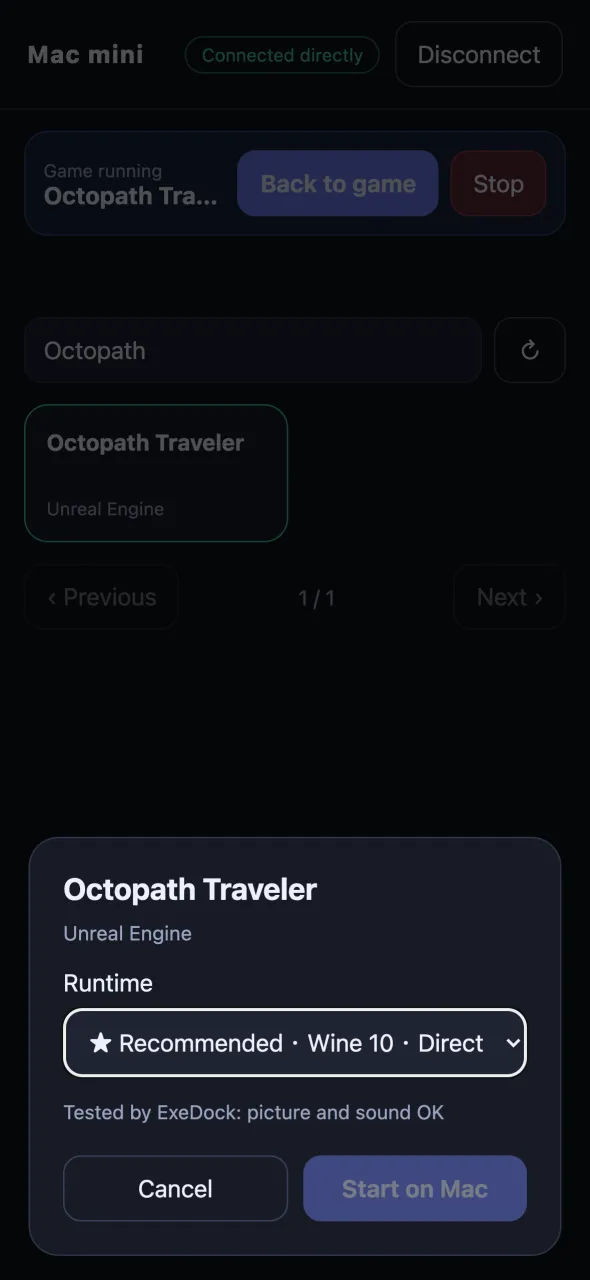
Browse your Mac’s library, choose a runtime and launch the game on the Mac. Disconnecting leaves the game running on the Mac.
Sound, and controls made for a phone
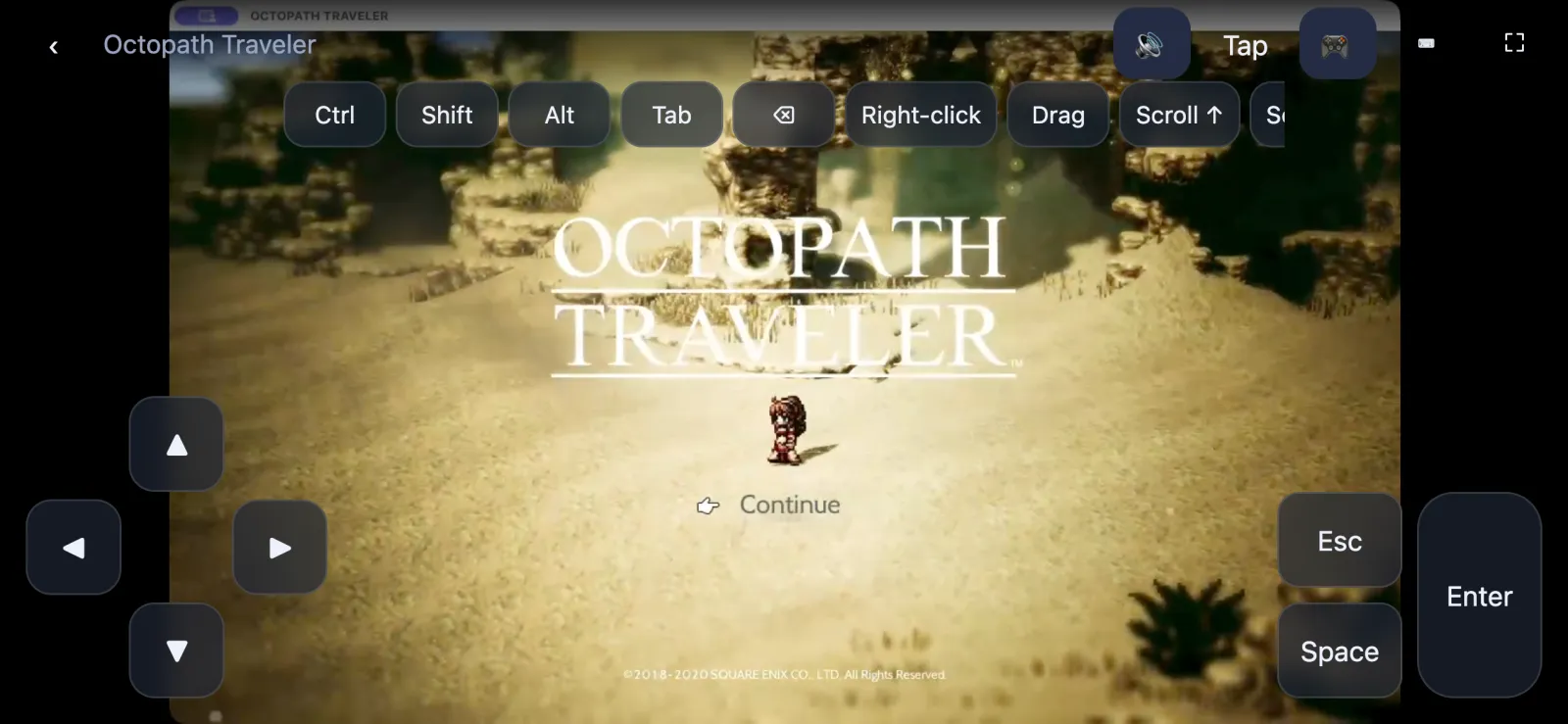
Only the game’s own picture and sound are captured. Tap or trackpad mode, a D-pad, Enter / Esc / Space, a latching Ctrl (to skip text) and a full keyboard.
Reconnects by itself
After a short network drop, or when you come back from the lock screen, the phone reconnects to the remembered Mac and returns to where you were.
What you need
- An Apple silicon Mac with macOS 15 or later, ExeDock and its optional Remote Play component (downloaded from ExeDock the first time).
- Safari on iPhone or Chrome on Android. No app to install.
- Phone and Mac together for the first pairing. Later you can connect from other networks, but some (certain mobile or office networks) cannot connect directly.
- ExeDock must be open and the Mac unlocked. Video is capped at about 2.5 Mbps (roughly 1 GB an hour), on your own data plan.
Set it up
Open Play on phone
Click “Play on phone” in ExeDock’s toolbar. The first time, the optional Remote Play component is downloaded and its window opens.
Allow permissions
When asked, allow ExeDock Remote Play under “Screen & System Audio Recording” and “Accessibility”. To send game sound, also allow it under “System Audio Recording Only” in System Settings › Privacy & Security › Screen & System Audio Recording.
Pair your phone
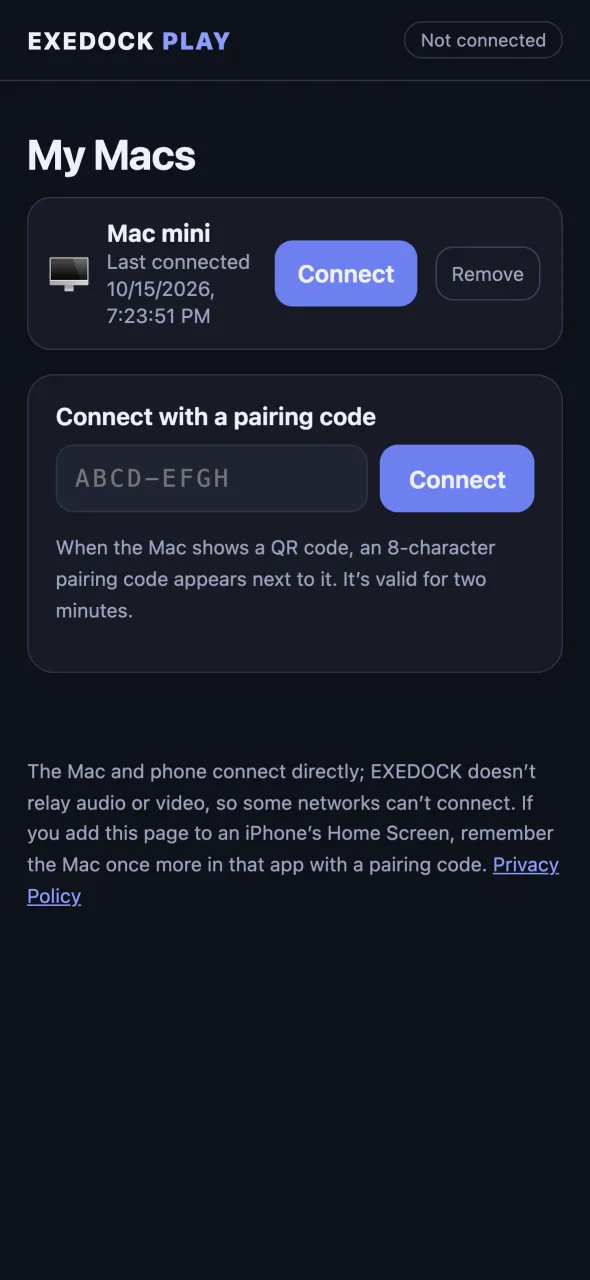
In the Remote Play window click “Connect a phone with QR code”, scan it with the phone’s camera and open it in Safari or Chrome. Or open remote.exedock.com and enter the 8-character pairing code shown next to the QR code (valid for two minutes).
Allow and remember on the Mac
Click “Allow and remember this phone” on the Mac. The phone’s home screen then shows your Mac under “My Macs”; tap it to connect from now on.
Turn on Remote standby
On ExeDock’s home screen, turn on “Remote standby” next to “Play on phone”; a green light means it is ready. To keep it after the Mac restarts, right-click “Play on phone” and turn on “Open EXEDOCK at login”.
Play from your phone
Open remote.exedock.com, tap your Mac under “My Macs”, choose a game and tap “Start on Mac”. Play once the picture appears. “Disconnect” only disconnects the phone; the game keeps running on the Mac.
Controls
Touch
Tap mode clicks where you tap; trackpad mode moves the pointer as you swipe and clicks on a tap. Two-finger tap is a right-click; a two-finger swipe scrolls.
Keys
D-pad, Enter, Esc, Space, Tab, Backspace and latching Ctrl / Shift / Alt. The full keyboard has F1–F12, letters, digits and symbols. Bluetooth keyboards work too.
Bring the game forward
If the game is not in front on the Mac, the phone pauses input and offers “Switch to game”.
Safety limits
The ⌘ key is never sent, and shortcuts macOS uses to switch Spaces (such as Ctrl + arrow keys) are blocked. If the connection stalls, the Mac releases every held key.
FAQ and troubleshooting
I added it to my iPhone Home Screen and “My Macs” is gone
Home Screen apps on iPhone keep their data separate from Safari. Enter the pairing code shown on the Mac inside the Home Screen app to remember the Mac there too, or keep using a Safari bookmark to remote.exedock.com.
The phone says the Mac is not on standby
Check that the Mac is on, ExeDock is open and “Remote standby” is on (green light).
The phone says the Mac is locked
Remote Play cannot run while the Mac is locked, and there is no remote unlock. If your Mac asks for a password after the display turns off, you can change that in System Settings › Lock Screen.
Picture but no sound
On the Mac, allow ExeDock Remote Play under “System Audio Recording Only” in System Settings › Privacy & Security › Screen & System Audio Recording. If the phone shows 🔇 at the top right, tap it to turn sound on.
The phone says this network cannot connect directly
ExeDock uses no media relay. Try with phone and Mac on the same Wi‑Fi first; across networks, a direct connection depends on both networks.
Does it cost anything? How much data does it use?
Play on phone is free. Video is capped at about 2.5 Mbps (roughly 1 GB an hour), carried by the Mac’s and the phone’s own connections.
Can ExeDock see my screen?
No. Picture and sound go directly between your Mac and phone; ExeDock’s service only helps the two find each other and passes on encrypted pairing data. See the privacy policy.